
User Guide: Signing into Your SendGrant Account
Welcome to SendGrant! Follow these steps to sign in to your account securely.
Step 1: Navigate to the sign-in Page
Open your web browser and go to the SendGrant sign-in page.
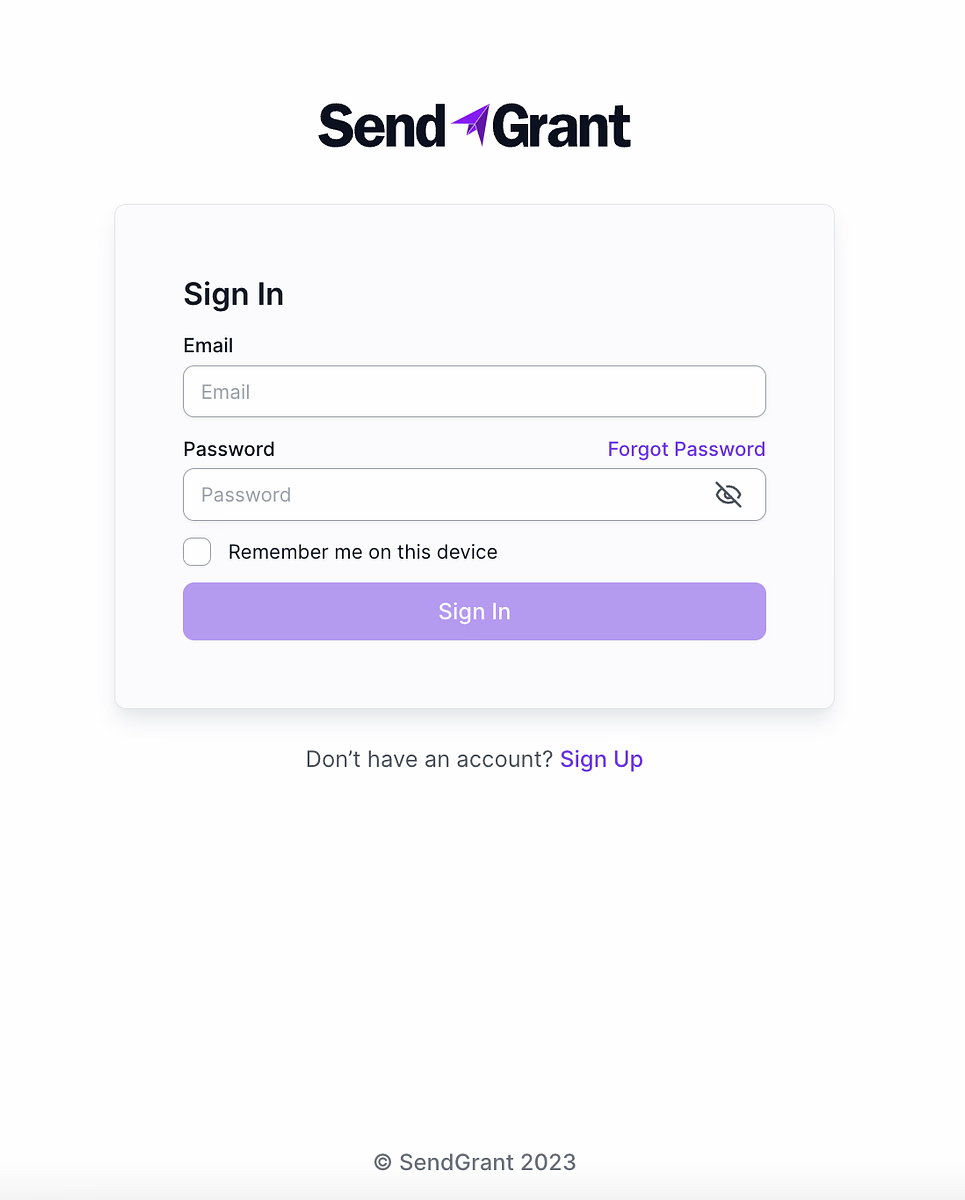
Step 2: Enter Your Credentials
On the sign-in page, enter your registered email address and password into the provided fields. After entering your credentials, click on the "Sign In" button to initiate the login process.
Step 3: Select the Second Factor of Authentication
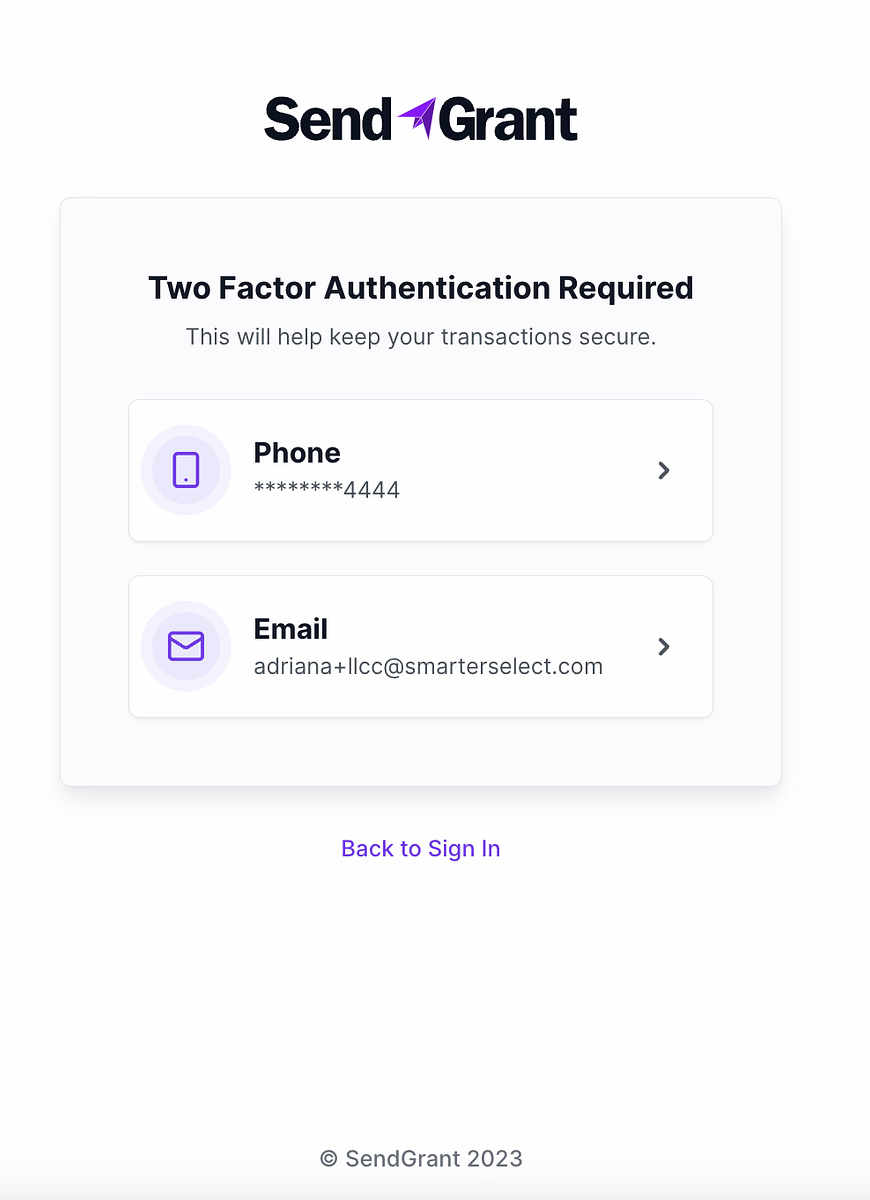
Upon successful verification of your credentials, you will be prompted to choose a second factor of authentication. This adds an extra layer of security to your account. You have the option to receive the verification code via phone or email.
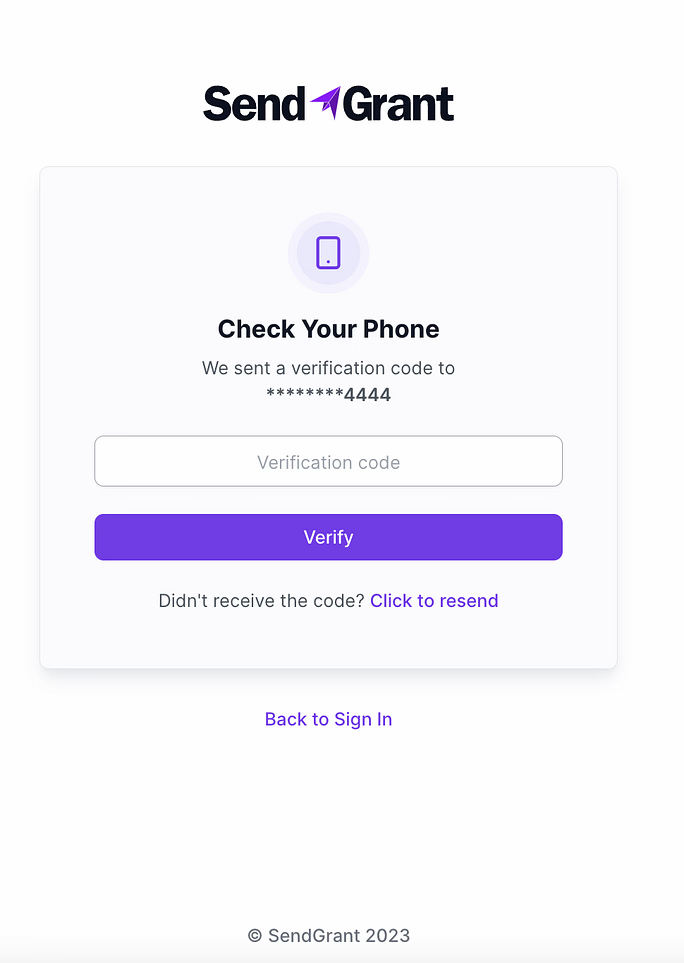
- Phone: If you choose this option, a verification code will be sent to your registered phone number.
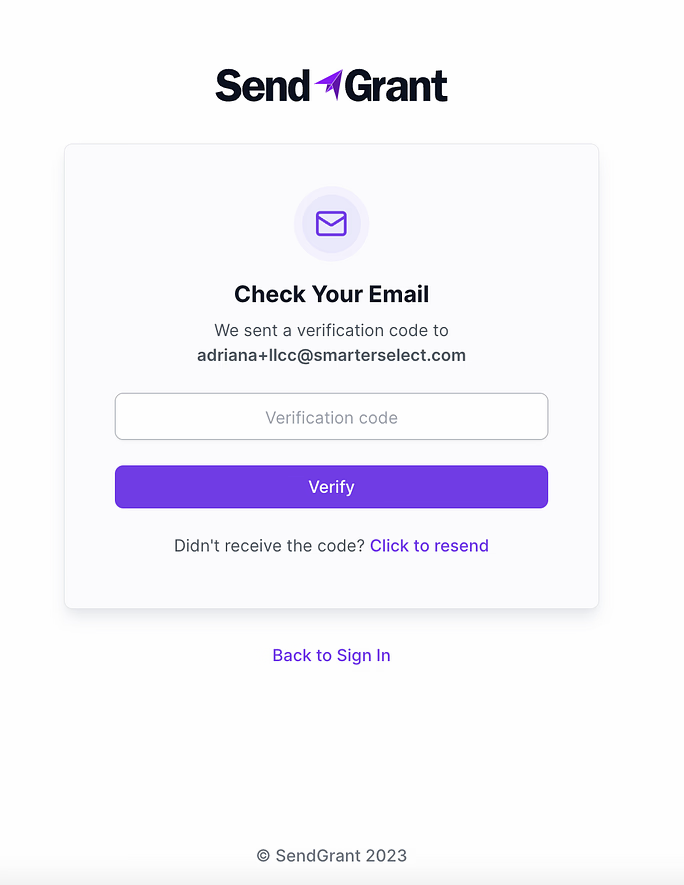
- Email: If you choose this option, a verification code will be sent to your registered email address.
Step 4: Retrieve the Verification Code
Check either your email inbox or your phone for the verification code. Be sure to use the code promptly, as it may have a time limit.
Step 5: Enter the Verification Code
Once you have the verification code, enter it into the provided field on the SendGrant platform.
After entering the code, click on the "Verify" button to complete the authentication process.
Congratulations! You have successfully signed in to your SendGrant account with an added layer of security through two-factor authentication.
If you encounter any issues during this process, refer to our support documentation or contact our customer support for assistance. Your account is now ready for use.