
This guide explains how to delete payments from your SendGrant account. Please note that you can only delete payments that are in "Draft" status.
Step 1: Access the Payments Page
1. Navigate to the Payments page
Step 2: Select Payments to Delete
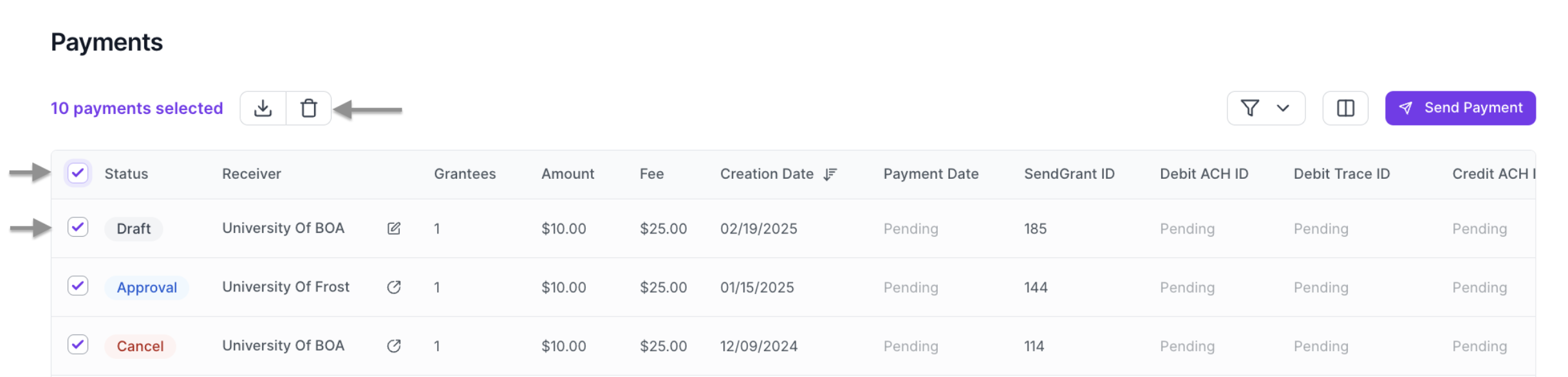
1. Locate the payment(s) you want to delete in the payments table
2. Check the checkbox next to each draft payment you wish to delete
3. You can select multiple draft payments at once
Step 3: Initiate Deletion
1. Look for the delete icon (trash can) in the upper menu of the table
2. Click the delete icon
Step 4: Confirm Deletion
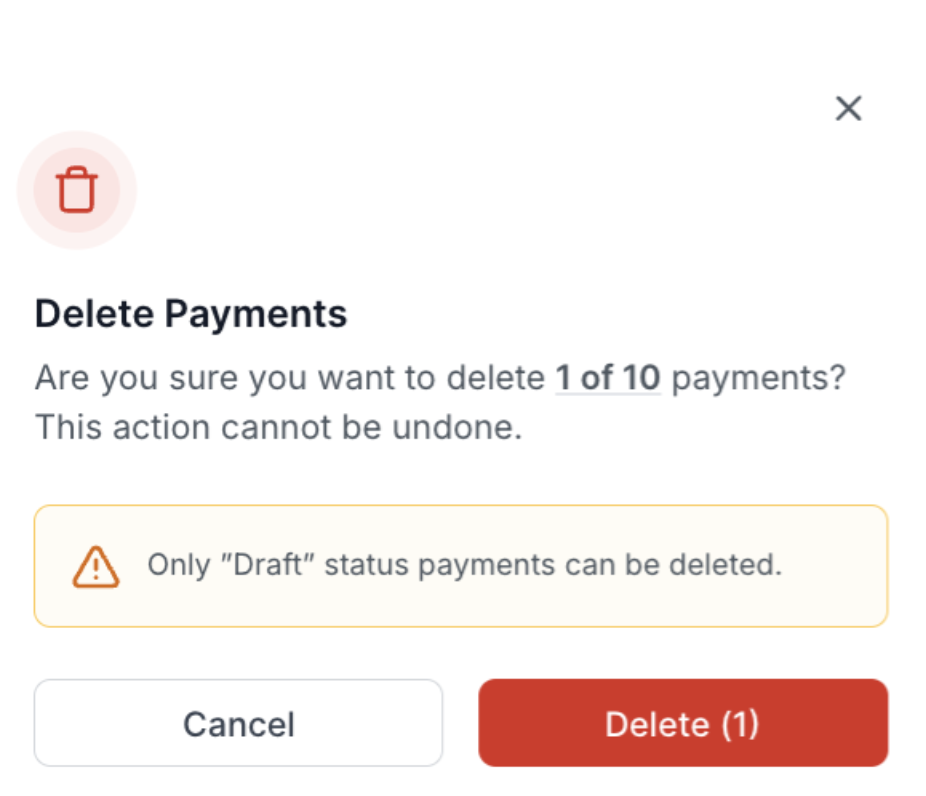
1. A confirmation modal will appear
2. The modal will show the number of draft payments to be deleted
3. Review the information carefully
4. Click the "Confirm" button if you want to proceed
5. Click "Cancel" if you want to keep the payments
Step 5: Completion
- The system will delete the selected draft payments
- The payments will be removed from your payments list
- The page will refresh to show your updated payments table
Important Notes

- Deletion is permanent and cannot be reversed
- Only draft payments can be deleted
- The system will not allow you to delete payments in any other status (approval, in-progress, rejected, failed, canceled)
- If you need to cancel a payment that's not in draft status, contact support
- Consider keeping records of deleted payments for your reference
- Use filters in the payments table to easily locate draft payments