
User Guide: Sending a Payment in Your SendGrant Account
Essentials to start sending payments in your Sendgrant account
To start sending payments, it is important to ensure that you have configured the essential steps of your account when you are setting up your account:
1. The organization's account must be Verified, for which you must have correctly completed the general and legal information of the organization during the onboarding process.
- Settings/Legal
2. There must be at least one approver user for payments. You must have sent an invitation to the user during the onboarding process and the user must have accepted the invitation and configured their user account.
- Settings/User
3. There must be at least one funding source connected to the organization's account.
- Settings/Banking
- Connect your bank account automatically by signing in to your bank through Plaid. (link to the specific section)
4. There must be a billing payment method connected to your account.
- Settings/Billing
- Connect your bank account automatically by signing in to your bank through Plaid. (link to the specific section)
These configurations can be made during the onboarding process or from the Settings pages.

Without these settings, the payment could be set up but will remain in Draft status.
User Guide: Sending Payments with SendGrant
Welcome to SendGrant! This guide will walk you through the process of sending payments using the platform. Make sure to follow each step to ensure a smooth transaction experience.
Each account comes with 5 free transactions! This allows you to explore the platform's capabilities and witness how easy and fast it is to make payments to your recipients or grantees.
After the initial 5 free transactions, a fee per transaction will be applied, depending on the plan you subscribed to.
Step 1. Accessing 'Send Payment' Feature:
- Navigate to the 'Send Payment' feature from either the Dashboard or the Payments page.
- Select the 'Send Payment' button to initiate the process.

Step 2. Choosing Payment setting up method:
- Decide how you want to enter Grantees and amounts: manually or by uploading a CSV file.
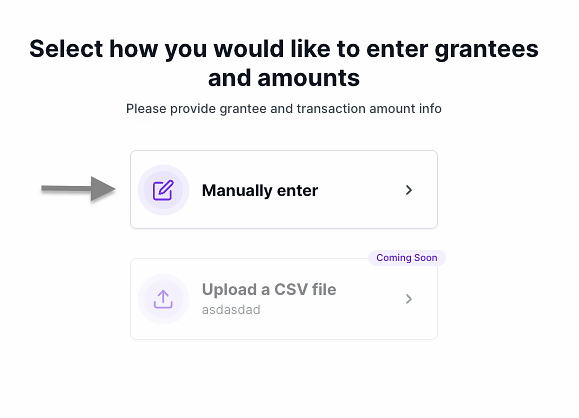
Note: Currently, we exclusively offer support for manual payments. The option to upload files will be available soon.
Step 3. Adding Grantees: Provide payment information, specifying the ultimate beneficiary of the payment (e.g., a University receives on behalf of the students).
- Pick Grantees from your existing list or add new Grantees by providing their name, email, and mobile phone number.
- Specify the grant amount in dollars.
- Choose the Receiver from your list or the SendGrant Verified Network. Additionally, you have the option to add a new Receiver if they are not available in the list, by adding from the Receiver page.
- Grantees and amounts will be grouped by the Receiver for easy organization.
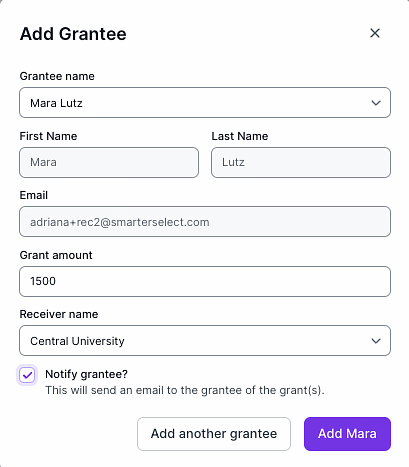
Step 4. Finalizing Payment Details:
- Add Notes and Files: Attach additional information or documents related to the payment, enhancing transparency and record-keeping. (e.g., grantee info, fund allocation details).
Accepted file formats encompass .doc, .docx, .xls, .xlsx, .csv, .pdf, .jpg, .jpeg and .png. The maximun allowable attachment size is 50 MB- Choose a payment Approver or invite a new user for approval. The Approver is a designated user responsible for approving payments. This step adds a layer of security and oversight to the payment process.
- Schedule the Payment Date: Choose the date when you want SendGrant to initiate the payment. Note that the actual processing time may vary between 4-6 business days.
- Pick the Payment Account: Select the specific funding source to be used for the payment. You can also connect a new bank account as a funding source using Plaid if needed.
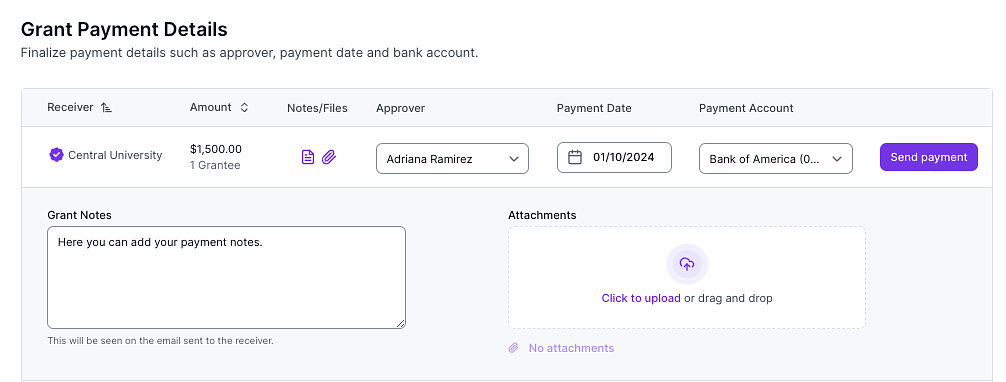
Step 5. Sending the Payment:
- Click the 'Send Payment' button
- Review and confirm that all payment information is accurate.
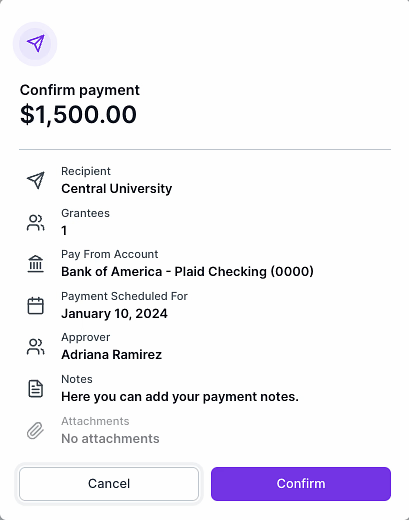
- Click the 'Confirm' button to initiate the processing. SendGrant will process your payment on the scheduled date.
- Your payment has been sent to get approval. You can track it on the Payments or Dashboard page.

Notes:

You can exit the flow at any time without losing progress. The payment will be saved as a draft.

You can add as many attachment documents as needed.
Congratulations! You've successfully sent a payment using SendGrant. If you encounter any issues, refer to this guide or contact SendGrant support for assistance.