
How to Add a Grantee in SendGrant
This guide will walk you through the process of adding a new grantee to your SendGrant account.
Step 1: Access the Grantees Page
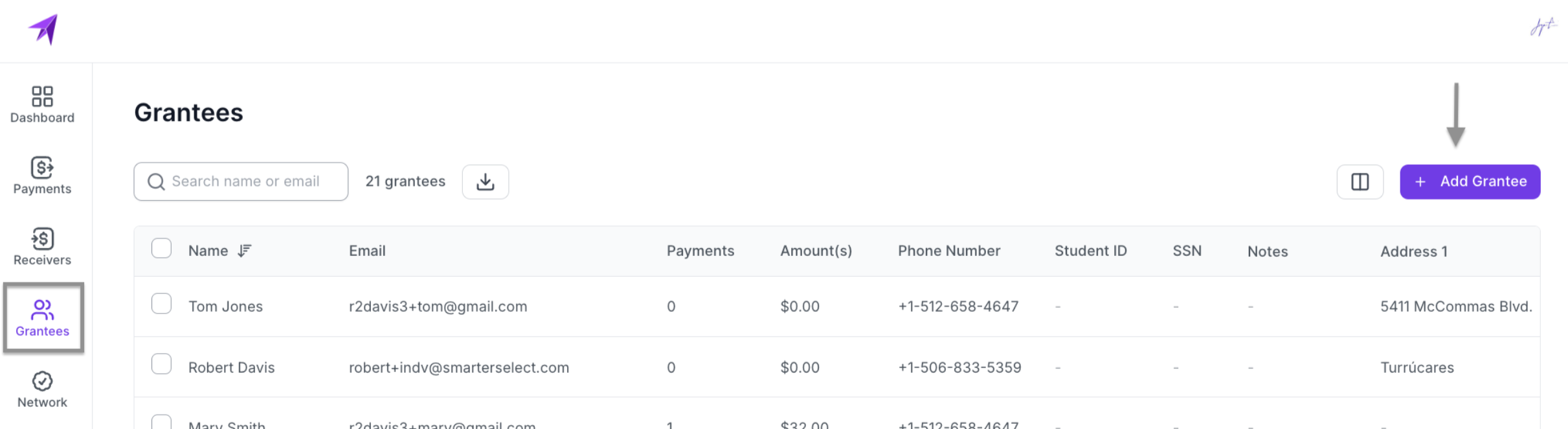
1. Navigate to the Grantees page from the main menu
2. Click the "Add Grantee" button in the top right corner of the page
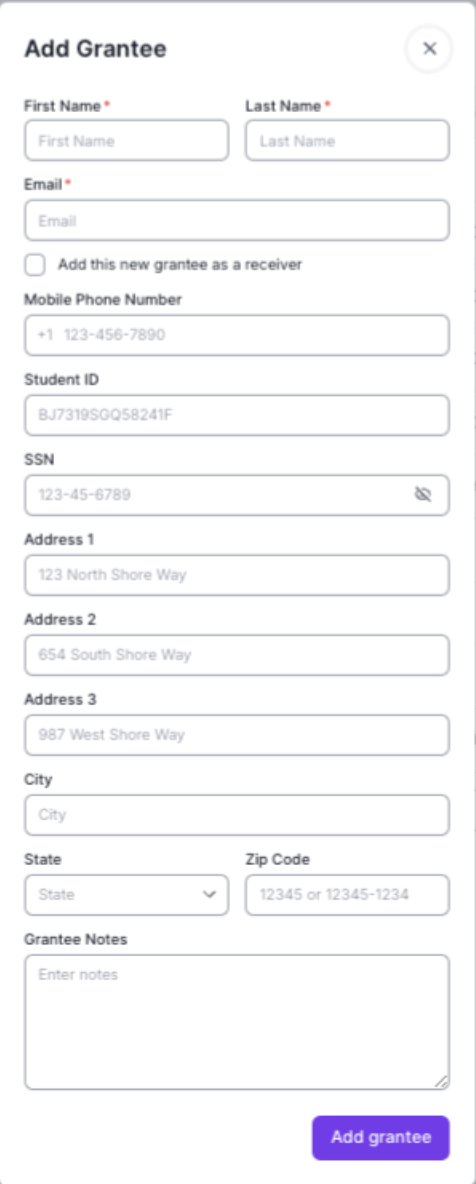
Step 2: Fill Out the Grantee Information
Enter the following information in the grantee form. Fields marked with an asterisk (*) are mandatory.
Step 3: Set Up Grantee as a Receiver
If you want to send payments directly to this grantee:
1. Locate the "Add this grantee as a receiver" checkbox
2. Check the box to create an individual receiver profile
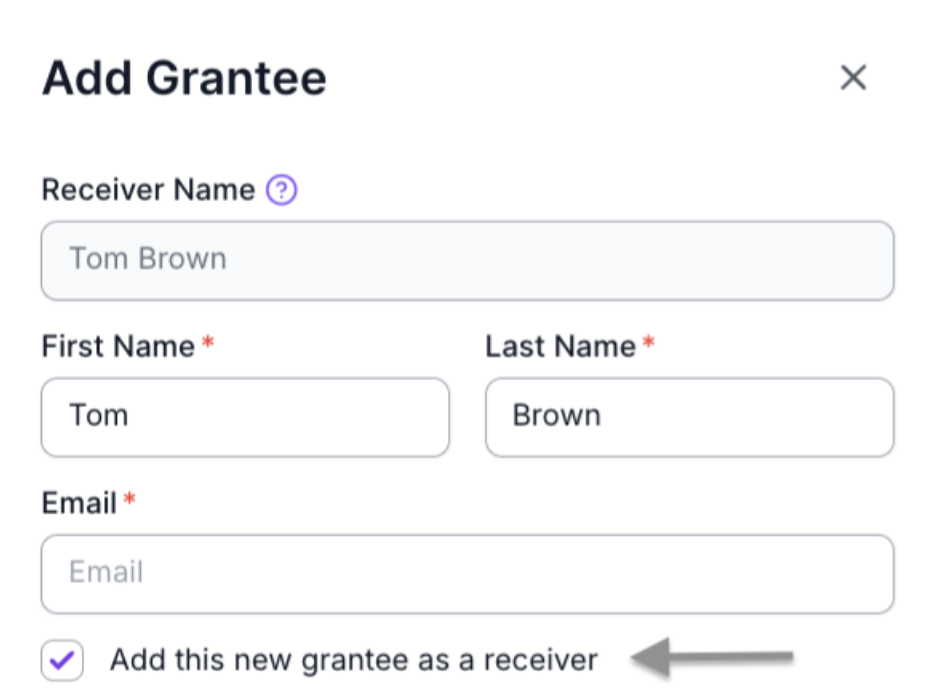
3. Automatically the system will create an individual receiver using the same information provided. Note: You'll need to set up the receiver's banking information separately.
Step 4: Save the Grantee
1. Review all entered information for accuracy
2. Click the "Add Grantee" button at the bottom of the form
3. The system will validate the information and create the grantee record
What Happens Next
After adding a Grantee:
- The new grantee will appear in your grantees list on the Grantees page
- If you selected "Add this grantee as a receiver", the new individual receiver will appear on the Receivers Page
- You can view and manage the grantee's information at any time by clicking on their name in the grantee list
Tips for Success

- Double-check all entered information, especially the SSN and student ID
- Make sure the email address is correct as it will be used for communications
- Use the notes field to record any special instructions or important details
- If you plan to send payments directly to the grantee, make sure to complete their receiver profile setup