
This guide explains how to remove grantees from payment while you're setting it up.
Step 1: Access the Grantees Information Screen
1. Navigate to the Grantees Information screen while setting up your payment
2. You'll see a table listing all grantees currently included in the payment
Step 2: Select Grantees to Remove
1. Find the grantee(s) you want to remove from the payment
2. Check the checkbox next to each grantee you wish to remove
3. You can select multiple grantees at once
Step 3: Remove Selected Grantees
1. Look for the delete icon at the top of the table
2. Click the delete icon
3. The selected grantees will be removed from the current payment only
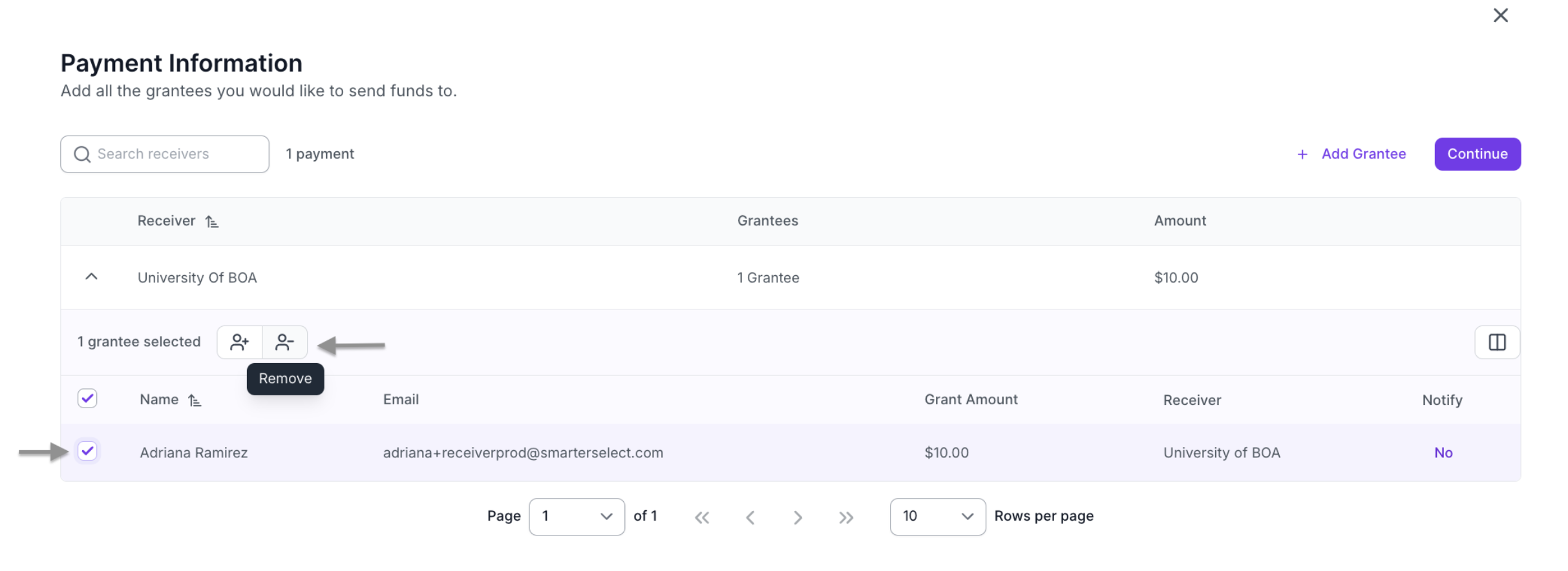
Step 4: Review Updated Information
After removing grantees, the system will automatically:
- Update the number of grantees shown in the Grantees column
- Recalculate and update the Total Amount column
- Refresh the grantee list in the payment
- Continue setting up your payment
Important Notes

- This action only removes grantees from the current payment
- Grantees are NOT deleted from your SendGrant account
- You can still include these grantees in other payments
- The grantees will remain available in your grantee list