
User Guide: Adding a Funding Source to Your SendGrant Account
SendGrant utilizes Plaid for secure and seamless integration with your bank accounts. Follow these steps to confidently add a funding source to your SendGrant account while ensuring the highest level of security:
Step 1: Navigate to Settings:
- Select the "Settings" tab in your SendGrant account.
Step 2: Access Banking Settings:
- Within the Settings section, locate and click on the "Banking" settings option.
Dwolla's ACH ID, used for whitelisting, is 945440567_ (note the underscore is actually a space). This ID is provided to financial institutions to enable ACH debits from a funding source via Dwolla's payment processor. It's crucial to include the space after the digits when whitelisting. Step 3: Initiate Account Addition:
- Look for the "Add New Account" button and click on it to begin the process.
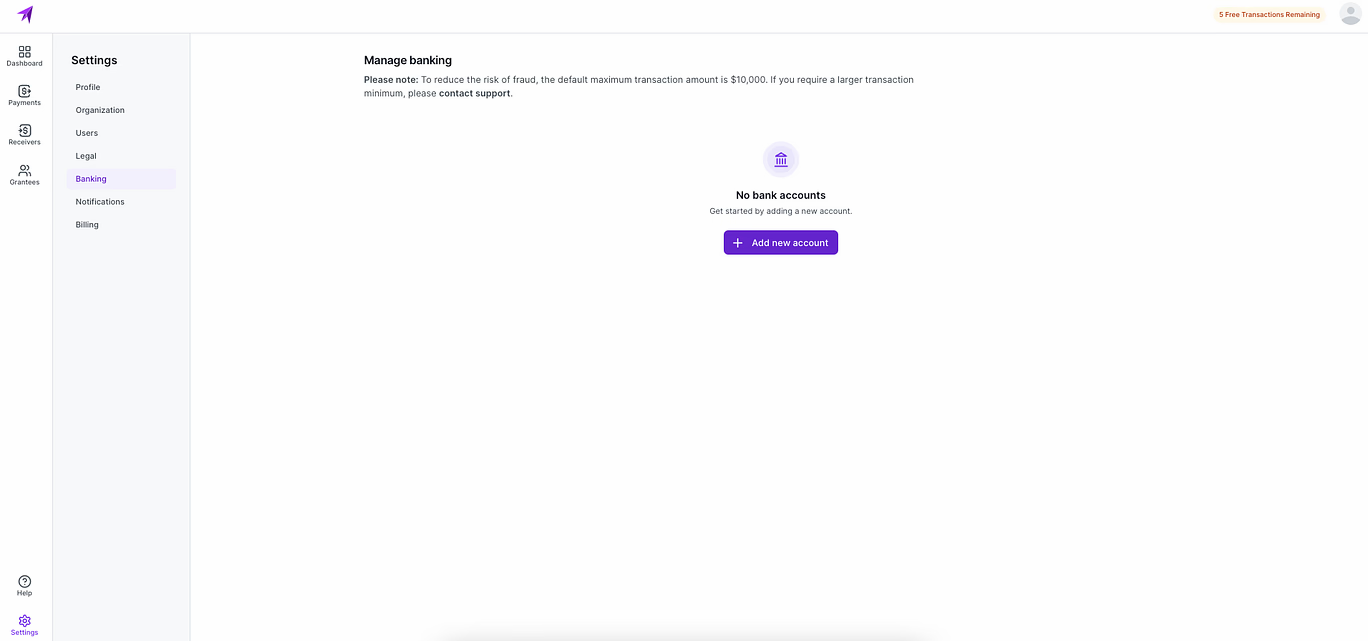
Step 4: Plaid Connection Modal:
- You will be redirected to Plaid's secure interface. Plaid is a trusted and secure platform used by SendGrant to facilitate this process.
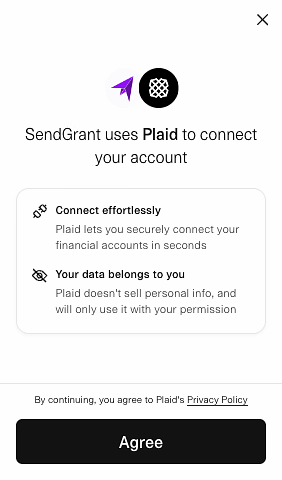
Step 5: Agree to Plaid Connection:
- Agree to the terms and conditions presented by Plaid to proceed.
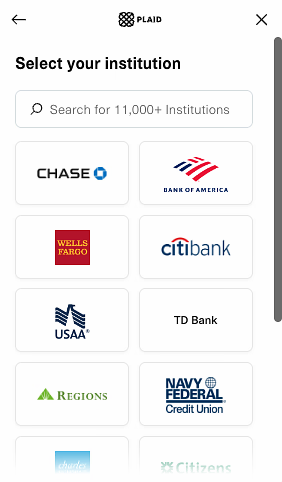
Step 6: Select Your Institution:
- Choose your bank from the list provided. Plaid supports a wide range of financial institutions.
Step 7: Log in to Your Bank Account:
- Follow the on-screen instructions to securely authenticate and link your bank account to SendGrant. Plaid ensures the confidentiality of your credentials. This step ensures a safe and encrypted connection.
Step 8: Choose Bank Account:
- After successfully logging in, you can now select the specific bank account that you want to add as a funding source to your SendGrant account.
- Grant the necessary permissions to allow SendGrant to access the required financial information securely.
Step 10: Review Connection Results:
- Plaid will display the results of the connection process. Once the connection is established, you'll receive a confirmation.
Step 11: Attach Authorized Signature
- After bank verification, you'll be prompted to attach an authorized signature
- Upload or draw your signature
- Confirm the signature attachment. You can skip and attach the signature later.
- Some organizations do not receive ACH payments. We offer the ability to send digital checks via email, but a signature is required for a digital check.
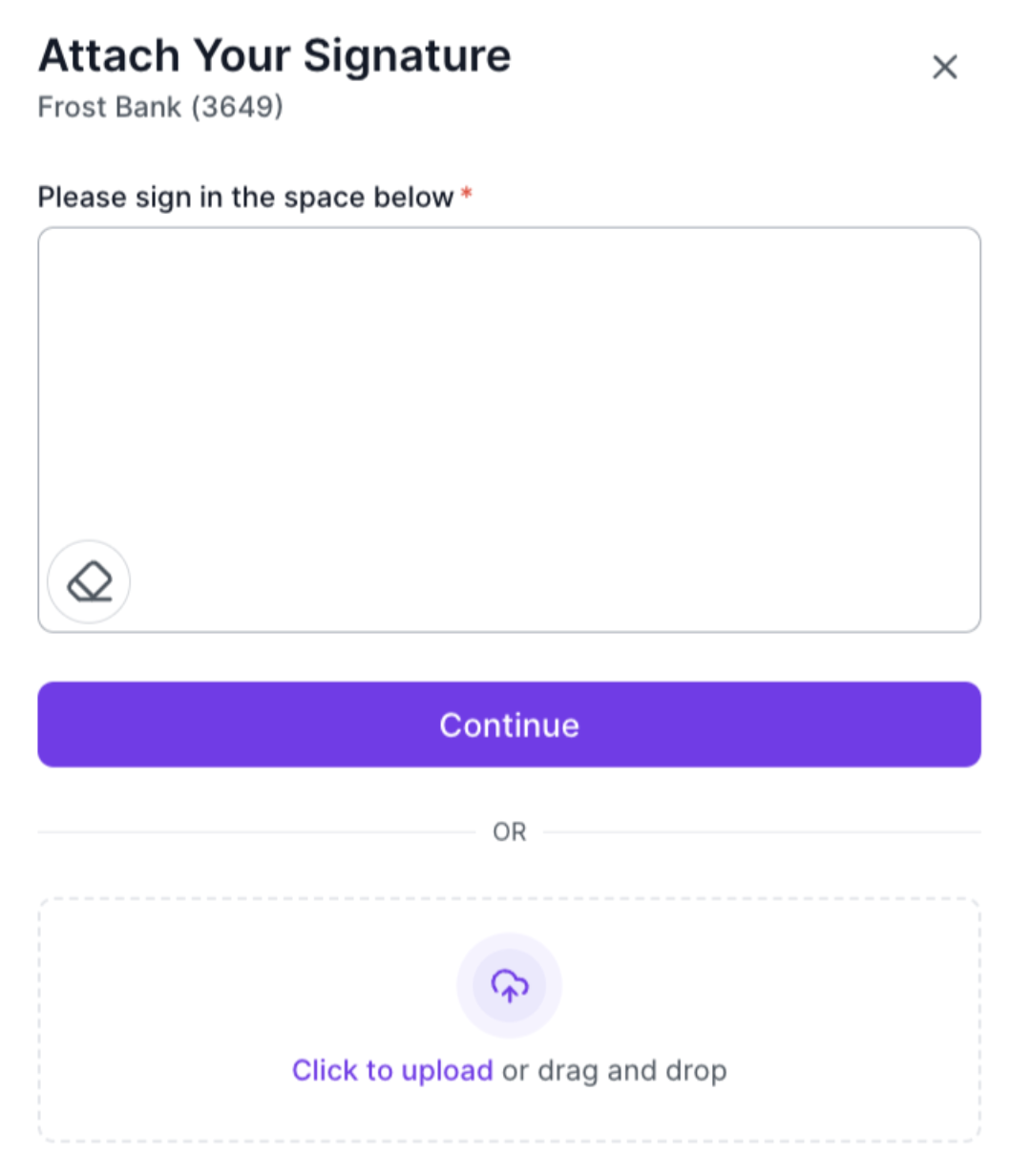
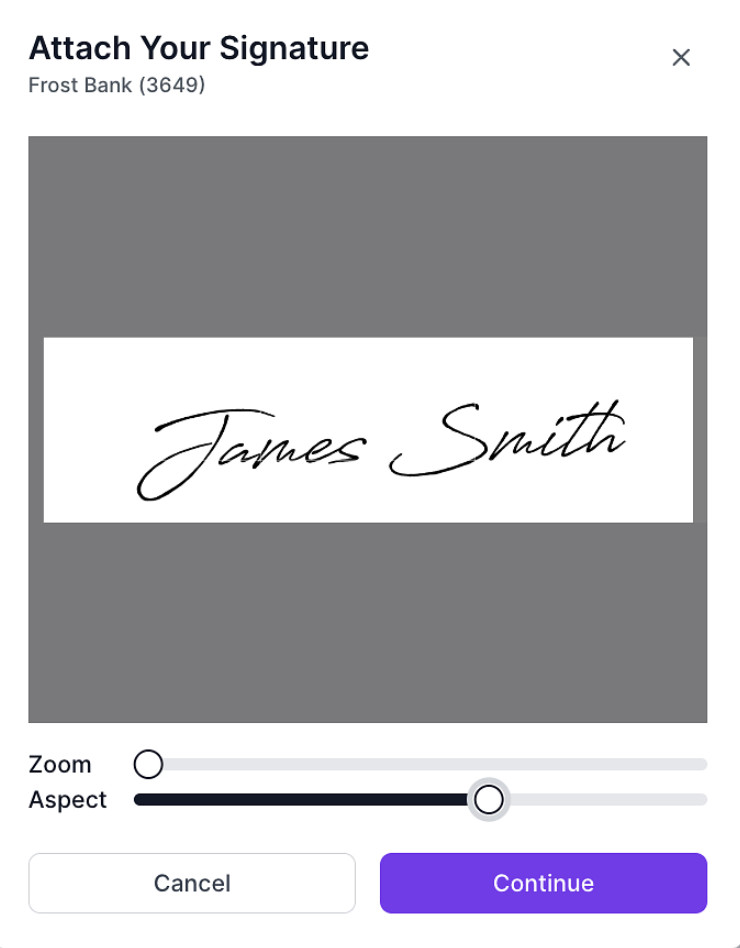
You can adjust your signature:
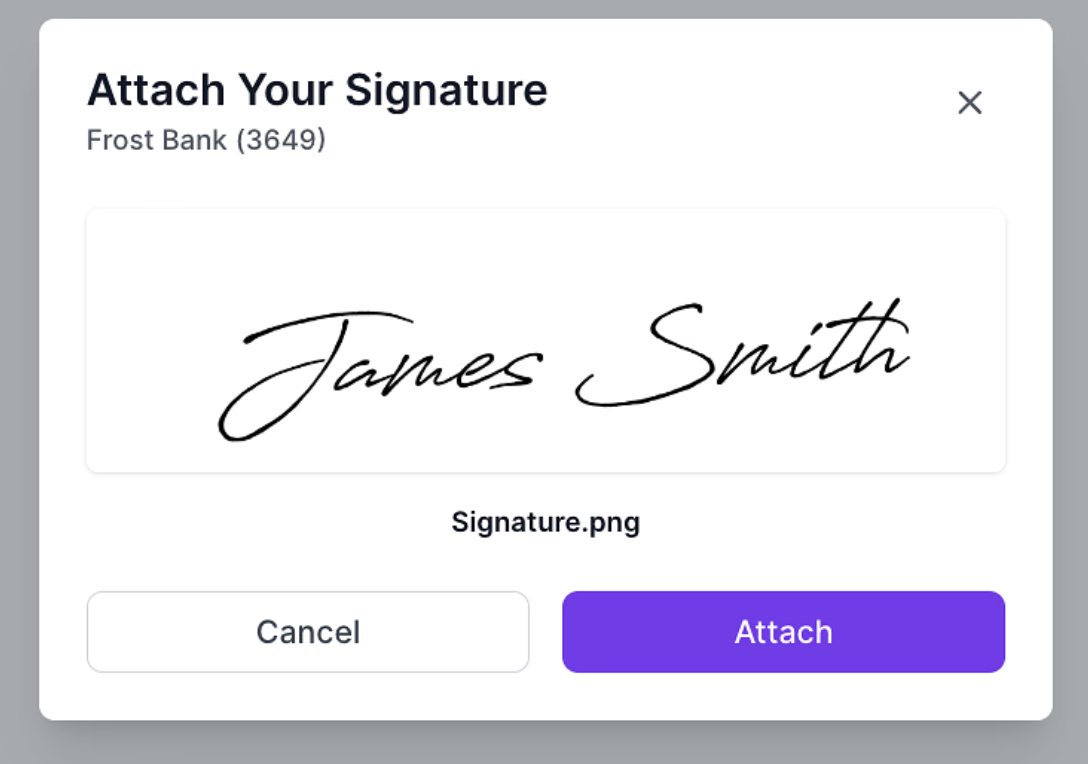
Then you will see the signature preview and click "Attach" to add the signature to the bank account.
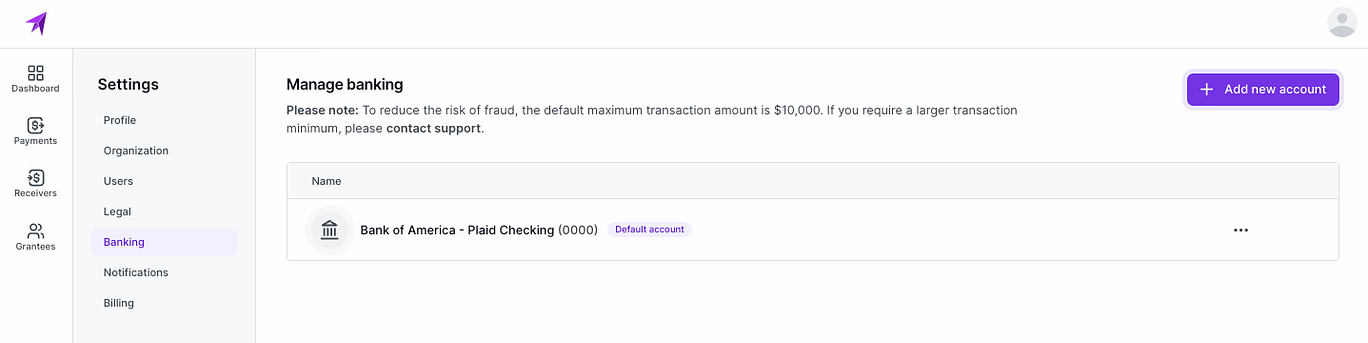
Bank Account Ready:
Once the connection is established, your selected bank account will be listed in the banking settings. It is now ready to be used as a funding source for sending payments through SendGrant.
Rest assured that your financial information is handled with the utmost care and encryption throughout the entire process. If you encounter any issues or have questions, feel free to reach out to our support team for assistance
Congratulations! You have successfully added a funding source. Your SendGrant account is now fully set up and ready for use. If you encounter any issues during this process, please refer to the SendGrant support documentation or contact customer support for assistance.
Managing Funding Sources
Click the three dots (⋮) menu next to any funding source to:
1. Set as Default Account
- Makes this account your primary funding source
- Will be selected by default for new payments
2. Attach Signatures
- Add or update authorized signatures
- Manage multiple signatures if needed
3. Unlink Account
- Remove the bank account from your SendGrant account
Note: This cannot be undoneImportant Notes
- You can add multiple funding sources to your account
- Each funding source requires verification through Plaid
- A funding source must have an authorized signature to be used to send a digital check payment
- You must always maintain at least one active funding source
Security Information
- All bank connections are secured through Plaid
- Signatures are securely stored and encrypted
- Regular re-verification may be required for security
Need Help?
If you encounter issues:
- Verify your bank is supported by Plaid
- Check your internet connection
- Ensure your bank credentials are correct
- Contact SendGrant support for assistance