
How to Export Data from SendGrant
The Export feature in SendGrant allows you to download data from tables. This functionality is essential for data analysis, reporting, sharing, and backup purposes. Your data will be exported in a CSV (Comma-Separated Values) file.
The following tables are supported for export:
- Payments
- Recent Payments
- Receivers
- Grantees
Steps to Export Data
1. Prepare Your Data:
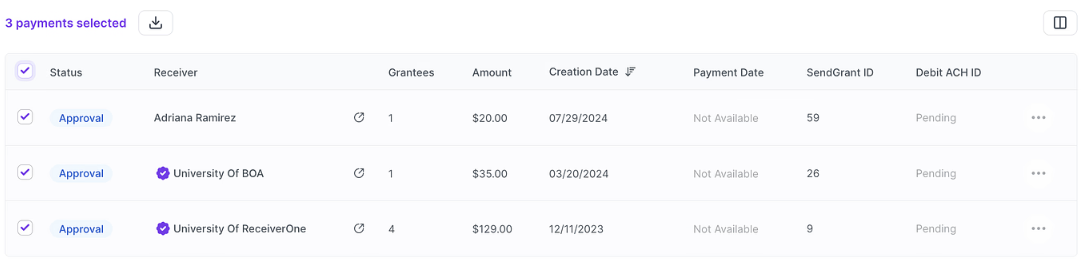
Before exporting, you can customize the data by adding or removing columns, applying filters, or selecting specific rows (e.g., payments). This helps ensure that only the data you need is included in the export.
2. Click the "Export" Button:
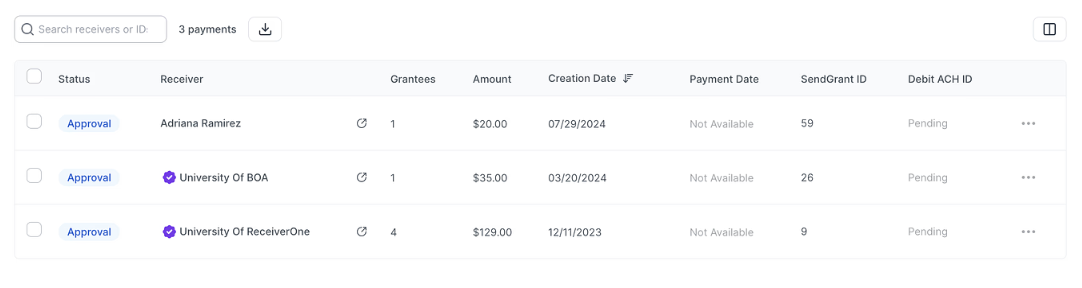
Once your table is set up as desired, click the "Export" button located on the table’s toolbar.
3. Confirm Export (if applicable):
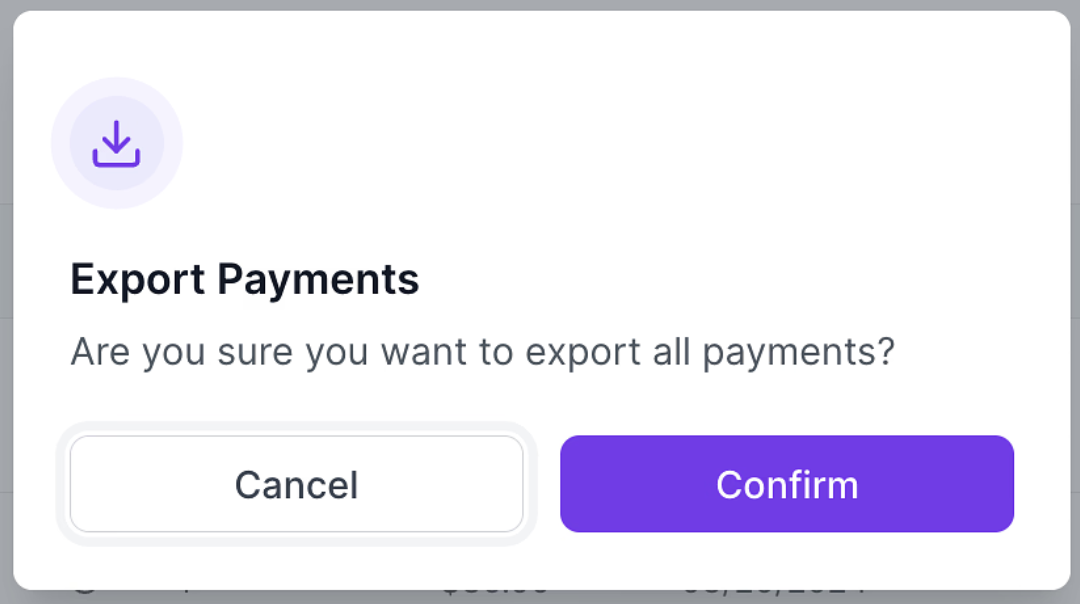
If no rows are selected and you click "Export," the system will assume you want to export all data from the table. A confirmation modal will pop up, asking you to confirm the export of all data.
4. Export Execution:
- The system processes your export request. The following elements will be included in the export:
- Columns: Only the columns currently displayed in the table will be included in the export.
- Row Range: If specific rows are selected, only those rows will be exported. If no rows are selected, the entire table will be exported.
- Data Filters: Any filters applied to the table will be respected in the exported data.
Once processed, the file will be generated and automatically downloaded to your device.
Troubleshooting Export Issues
- File Not Downloading: Ensure your browser settings allow downloads and that you have sufficient storage space.
- Incorrect Data Exported: Double-check any filters or columns selected before exporting.
- Format Issues: If the file doesn’t open correctly, ensure you have the appropriate software installed.
For further assistance, please contact our support team.