
User Guide: Approving a Payment in Your SendGrant Account
This guide will walk you through the steps involved in approving or rejecting payments when you are assigned as an approver.
Note: Admins can approve their own payments while the free payments remain available to facilitate and support onboarding and product exploration. However, once the free payments are spent, an approver user within the account will be required to approve payments.
1. Email Notification:
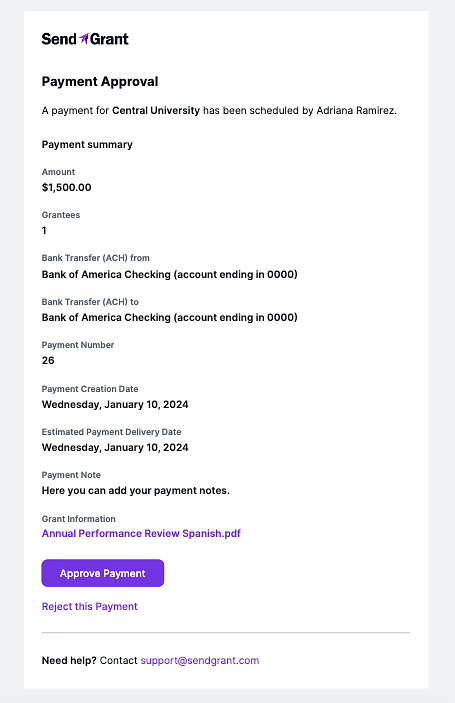
Upon being assigned as an approver for a payment, you will receive an email containing important payment information. This email serves as your gateway to the approval process.
2. Approval Process:
- Validate Payment Information: Review the payment details carefully to ensure accuracy.
- Approve Payment: If the information is correct, simply click the "Approve" button in the email.
You will be redirected to your SendGrant account to complete the approval process. If prompted, sign in to your account.
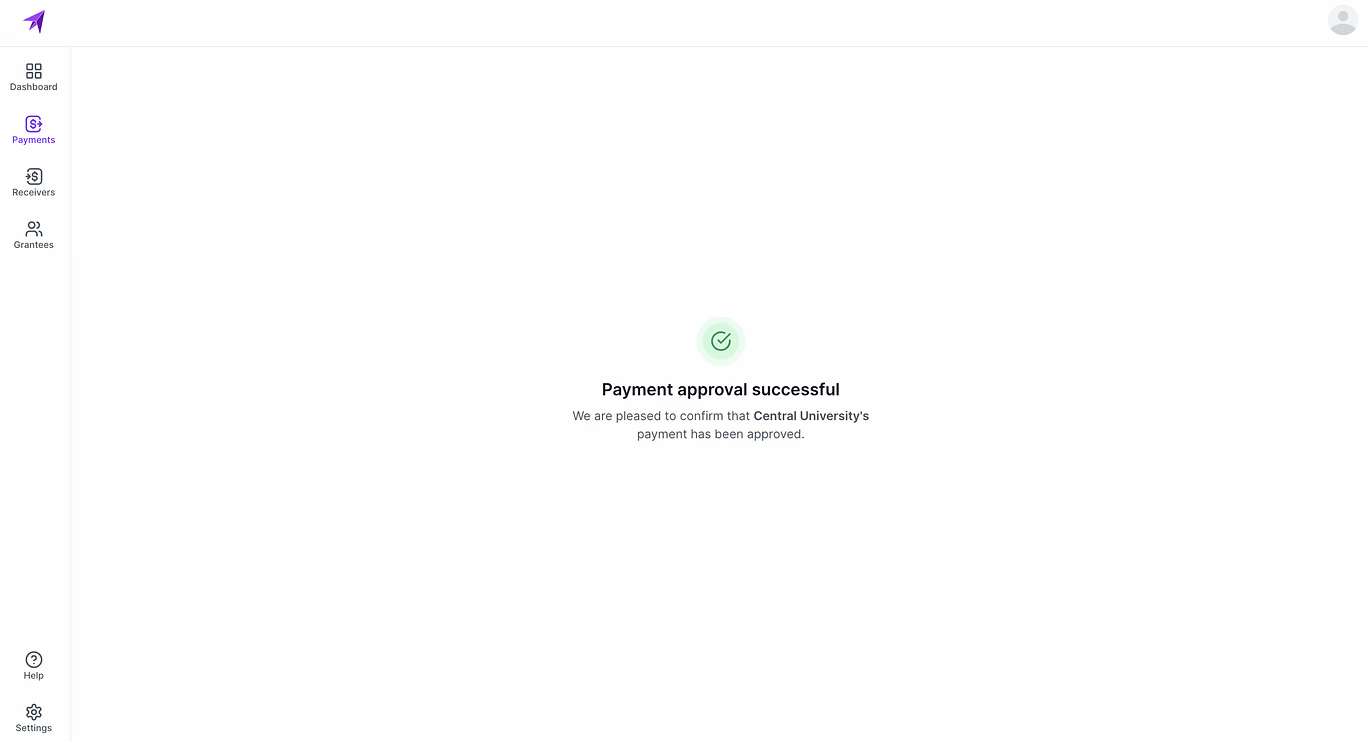
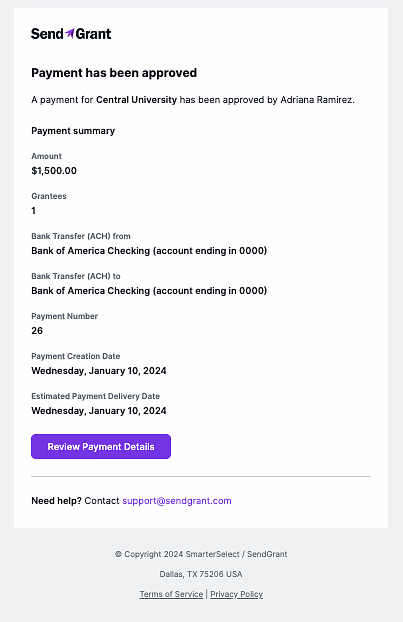
The payment status will be updated to "In Process" once the approval is confirmed, and all admins on the account will be notified.

3. Rejection Process:
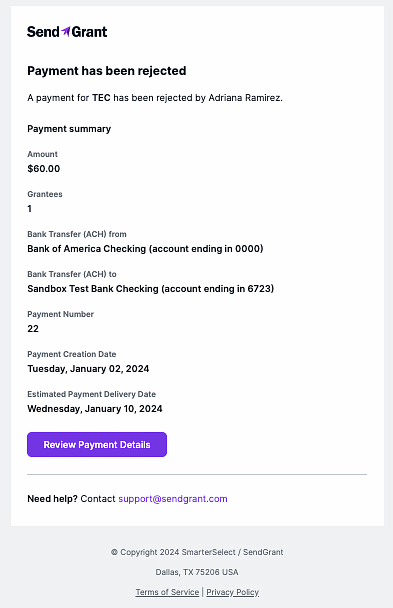
If you identify issues such as incorrect, missing, or any other problematic information, you may reject the payment. Click the "Reject" button in the email to initiate the rejection process. You will be redirected to your SendGrant account to complete the rejection process. If prompted, sign in to your account.
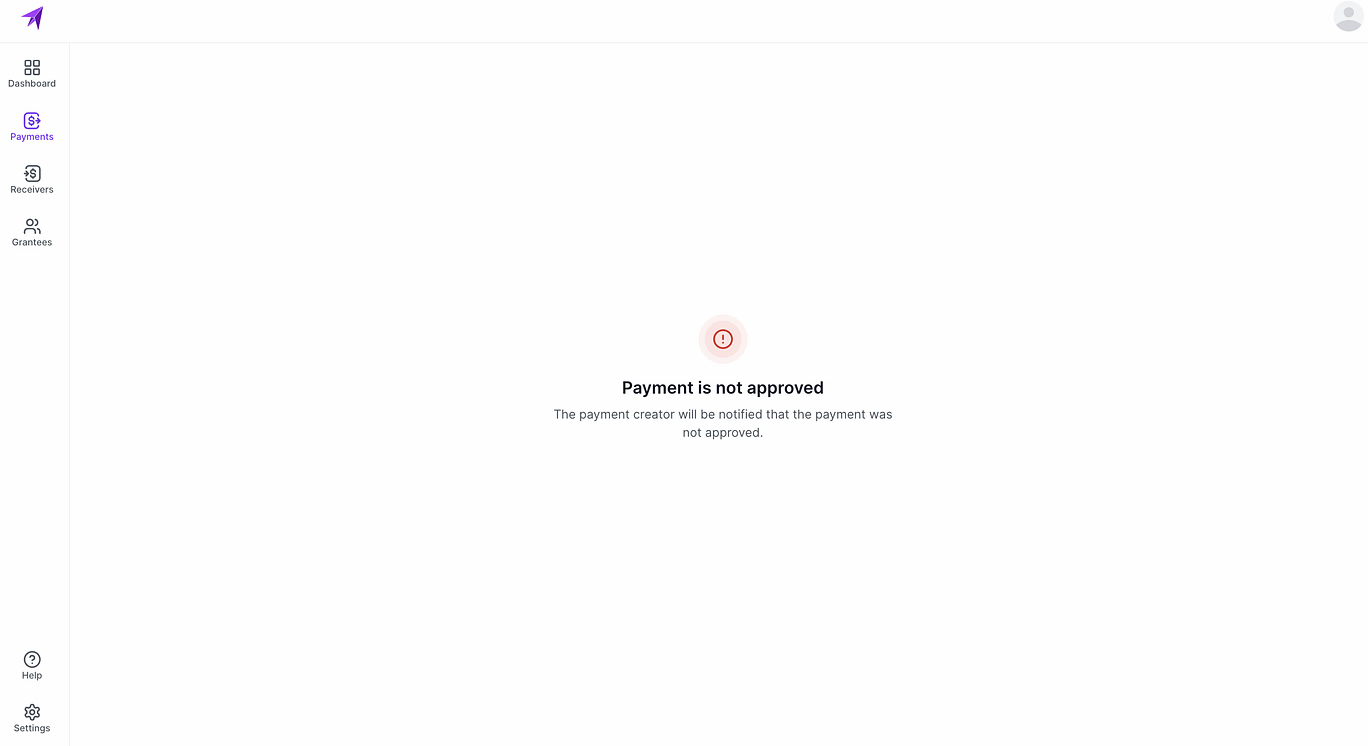
The payment status will be updated to "Rejected," and all admins on the account will be notified.

4. Payment Processing:
Approved Payments: Once a payment is approved and the payment date is reached, SendGrant will initiate the payment processing.
Rejected Payments: Payments that are rejected will not proceed any further in the SendGrant processing pipeline.
Additional Information:
- Ensure your email preferences allow for the proper receipt of approval emails.
- If you have questions or concerns about the payment, contact your administrator.
Thank you for following this user guide. If you need further assistance, please reach out to the SendGrant support team.