
This guide explains how to modify existing payments in your SendGrant account. Please note that you can only edit payments that are in "Draft" status.
Step 1: Access the Payment
1. Go to the Payments page
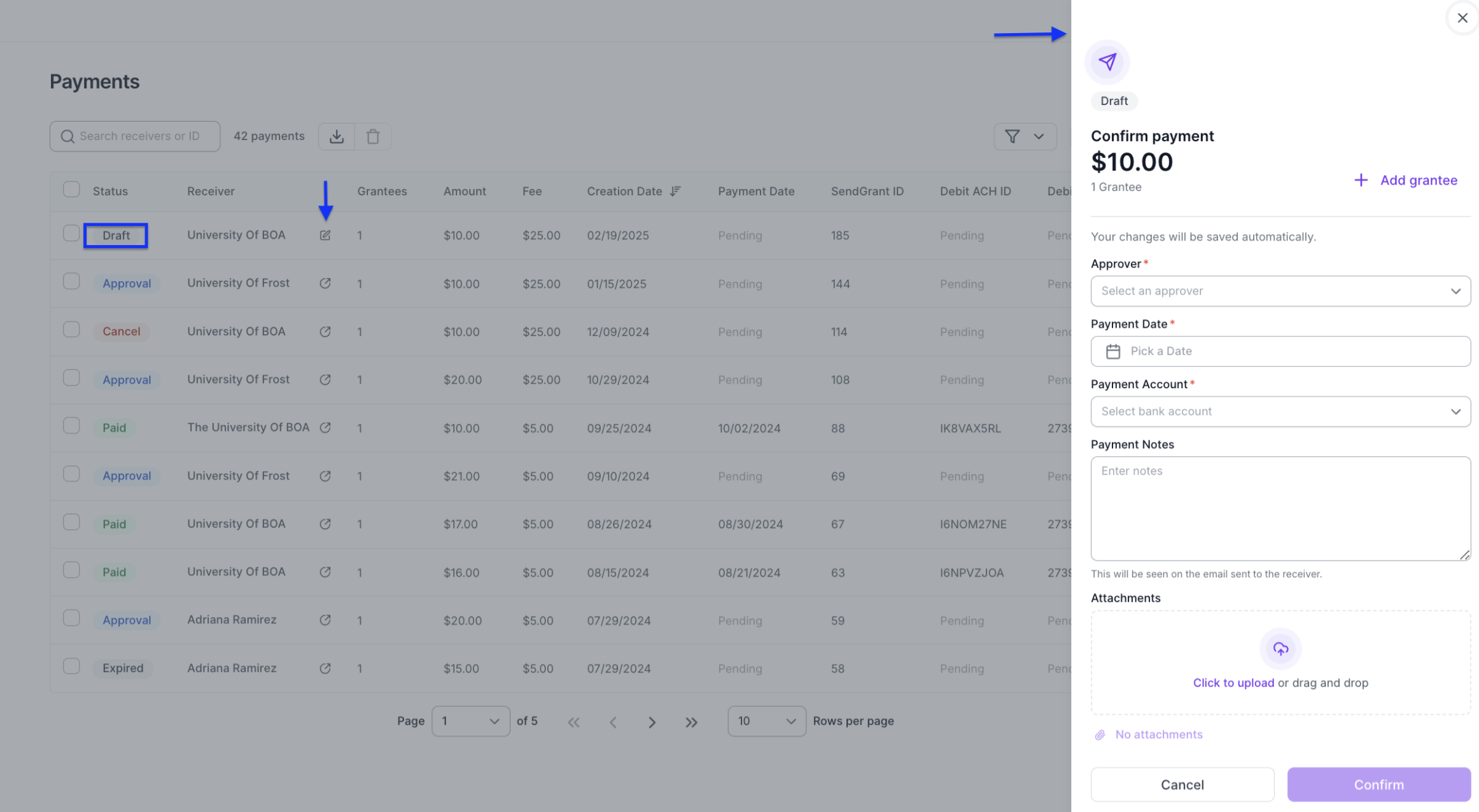
2. Locate the payment you want to edit
3. Verify that the payment is in "Draft" status
Step 2: Open the Edit Panel
1. Find the edit icon (pencil) next to the payment receiver's name
2. Click the edit icon
3. A side panel will slide out from the right
Step 3: Make Your Changes
In the side panel, you can modify:
- Grantees info: add grantees
- Payment approver
- Payment Date
- Payment account (funding source)
- Payment Notes
- Add Payment Notes and Attachments
Step 4: Review and Complete
1. Double-check all modified information
2. Ensure all required fields are filled correctly
3. Click "Confirm" to save your changes
Step 5: Send the Payment
After confirming your changes, you can:
1. Send the payment immediately
2. Keep it in draft status for later closing the side panel, changes will be saved.
Important Notes

- Edits are only possible for draft payments
- You can make multiple edits to a draft payment
- Once a payment is sent, it can no longer be edited