
User Guide: Onboarding Process for Setting Up Your SendGrant Account
Welcome to SendGrant! Now it's time to set up your account so you can send scholarship and grant payments electronically.
After successfully creating and validating your account on the platform, you'll be ready to start the onboarding process. Follow these steps to easily set up your account and make the most of our platform.
Note: If unable to complete the information at any step, select "I'll add this later" to proceed to the dashboard.You can return to complete the onboarding steps later.
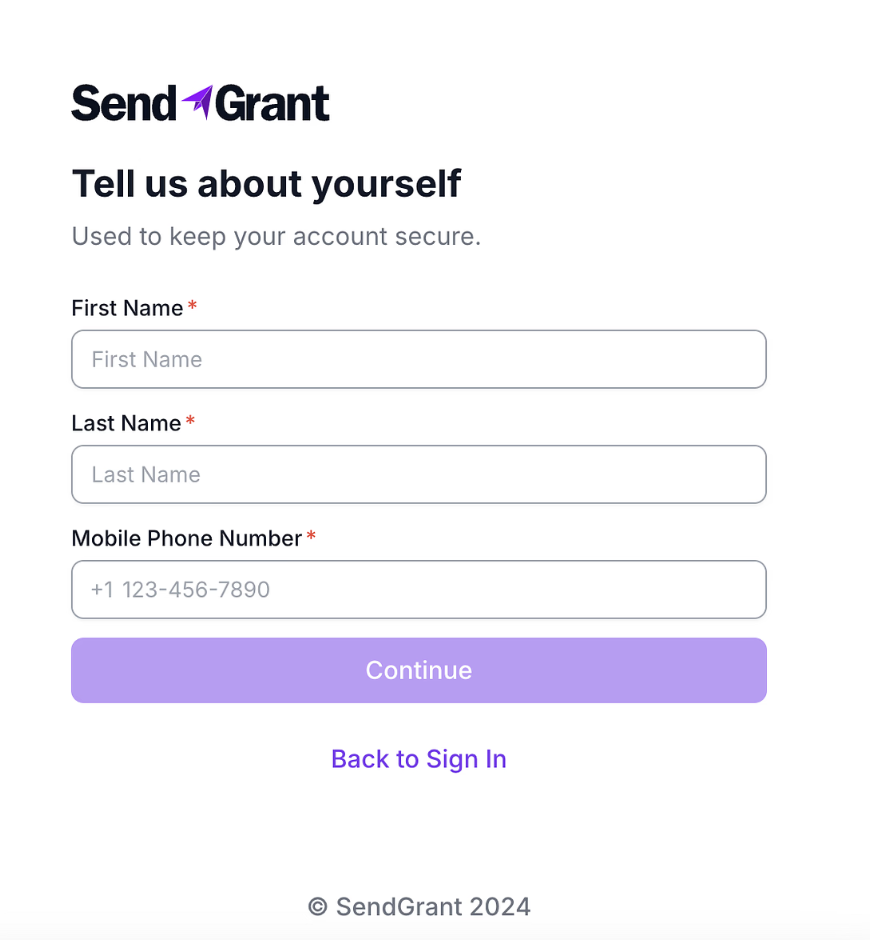
- Enter your information: Name, Last Name, Mobile Phone Number.
- Click the "Continue" button to proceed.
Organization Setup
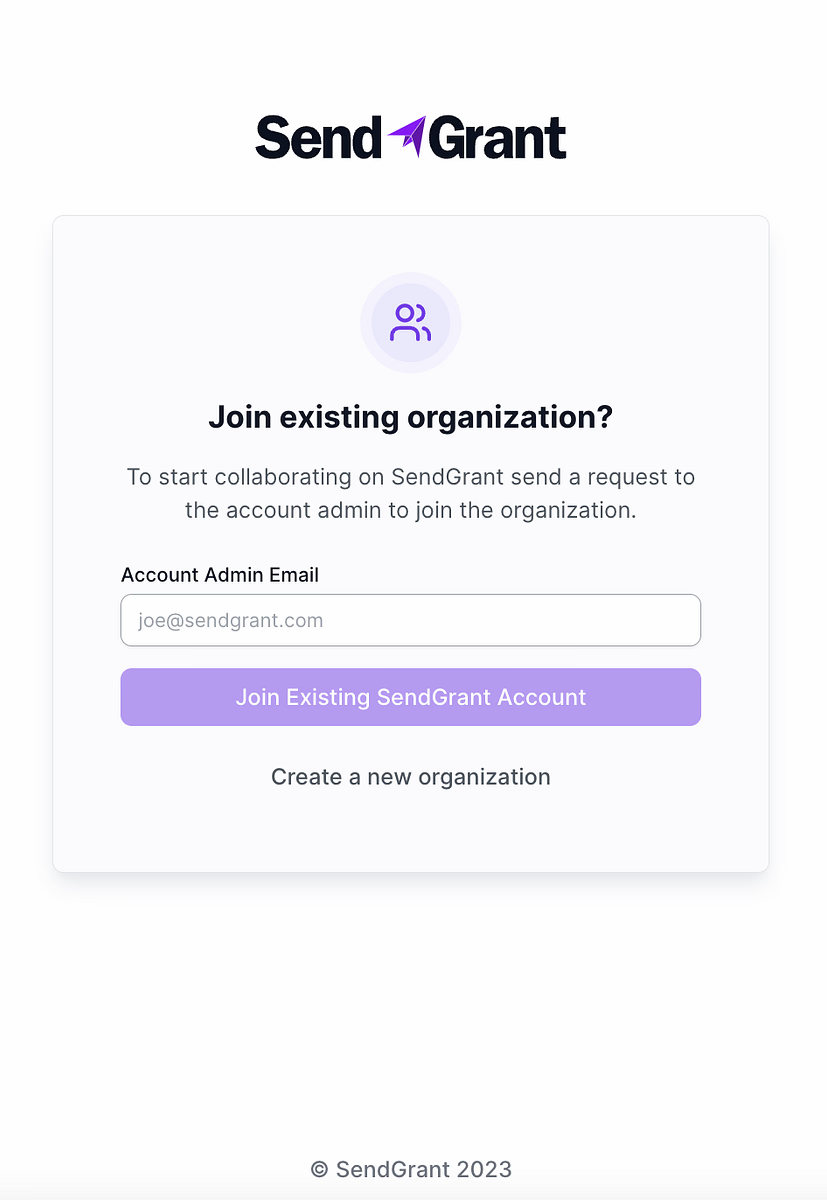
- If you're joining an existing organization: Enter the email of the account administrator to send a join request.
- If you're creating a new organization, click the "Create a new organization" button to proceed.
Creating a new Organization Setup
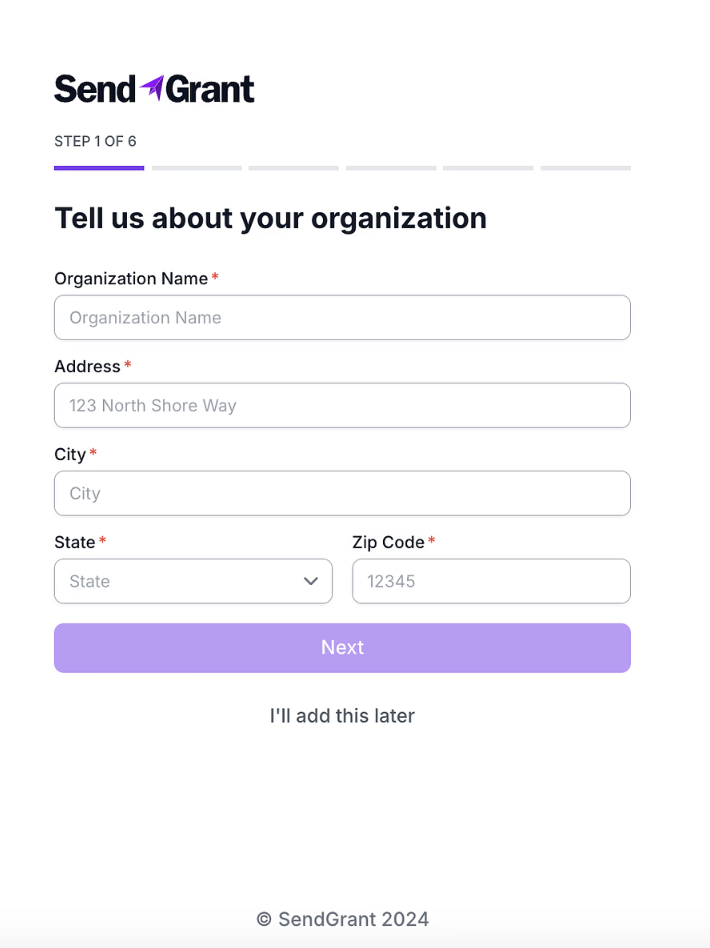
Step 1: General Information
- Enter the organization's general details: Organization Name, Address, City, State, and Zip Code.
- Click the "Next" button to proceed.
Step 2: Legal Information
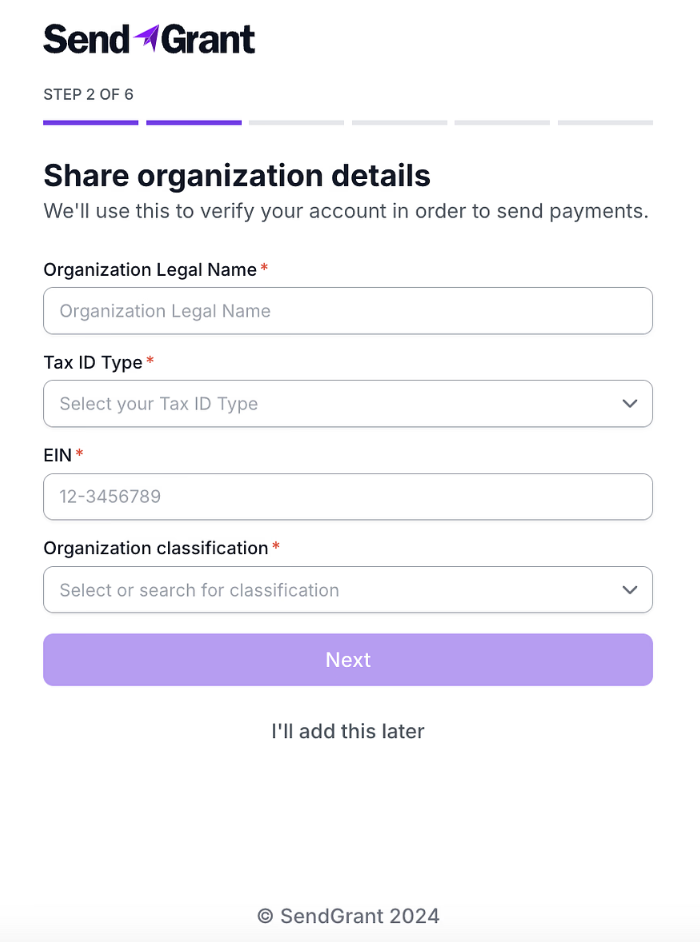
- Provide detailed information for legal verification. These include:
- Legal organization name
- Tax ID Type
- EIN (Employer Identification Number)
- Organization classification: Select the appropriate Organization classification.
We’ll use this information only to verify your organization according to banking regulations. It will not appear on payments sent on your behalf, bank statements, or emails sent to your receivers.
- Click the "Next" button to continue.
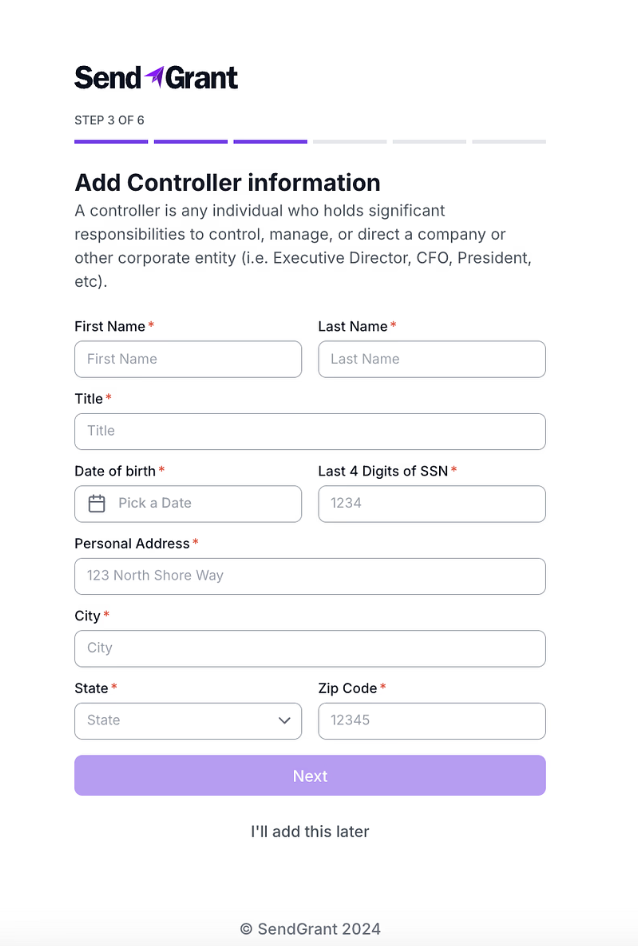
Step 3: Controller Information
- Enter details of the controller, an individual with significant responsibilities in managing the organization. Again, this is required per banking regulations.
A controller is any individual who holds significant responsibilities to control, manage, or direct an organization or other corporate entity (i.e. Executive Director, CFO, President, etc)Note: To complete this step, it's important to note that the controller's personal address, which is often different from the organization's address previously provided, must be submitted. Our payment processor, Dwolla, conducts a verification process in compliance with Know Your Customer (KYC) regulations for all customers. This process uses both the organization's and controller's information to verify the account through their system and public records. In cases where the controller or business has a limited public footprint, additional documentation may be required.- Click the "Next" button to proceed.
Step 4: Beneficial Ownership Submission
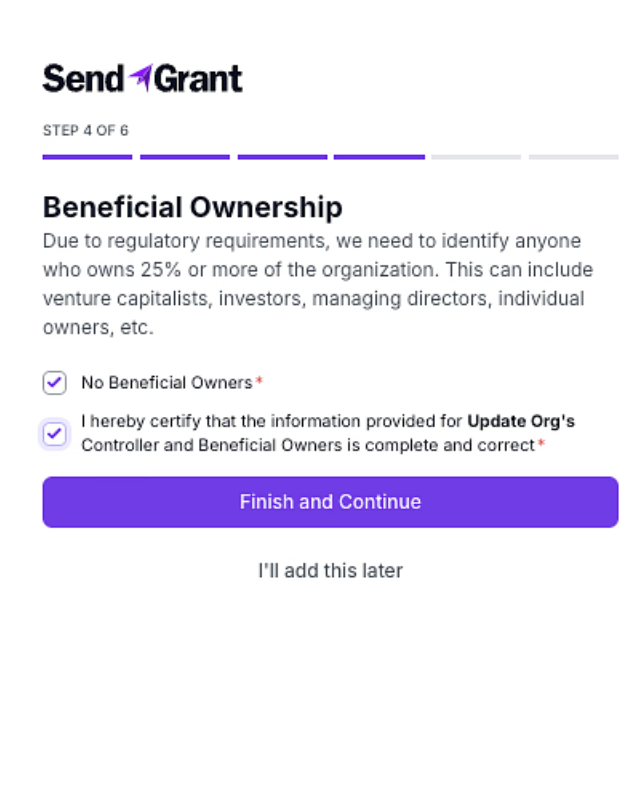
Due to regulatory requirements, we ask our customers to provide information about any beneficial owners, if applicable.
Beneficial owners: Individuals who own 25% or more of the organization. This may include venture capitalists, investors, managing directors, or individual owners.
If your organization is like most of our customers—a nonprofit—you’ll need to certify that there are no beneficial owners, as this structure typically does not apply to nonprofit organizations.
If your organization does have beneficial owners, please contact our support team for further assistance.
- Verify the checkboxes confirming the absence of Beneficial Owners (e.g. non-profit) and the accuracy of the provided information.
- Click the "Finish and Continue" button to proceed.
Step 5: Connect your bank account
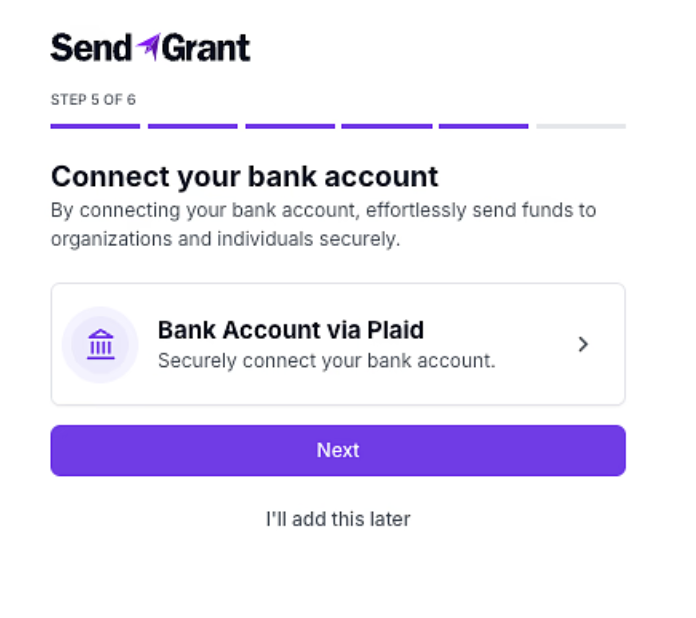
Securely connect a bank account that will be used as your funding source to send funds to organizations and individuals.
1. Select the "Bank Account via Plaid" option to connect your bank account
2. Access the Plaid secure service
3. Provide your bank account information
4. Complete the verification process
5. Attach an authorized signature to the bank account. Some organizations do not receive ACH payments. We offer the ability to send digital checks via email, but a signature is required for a digital check.
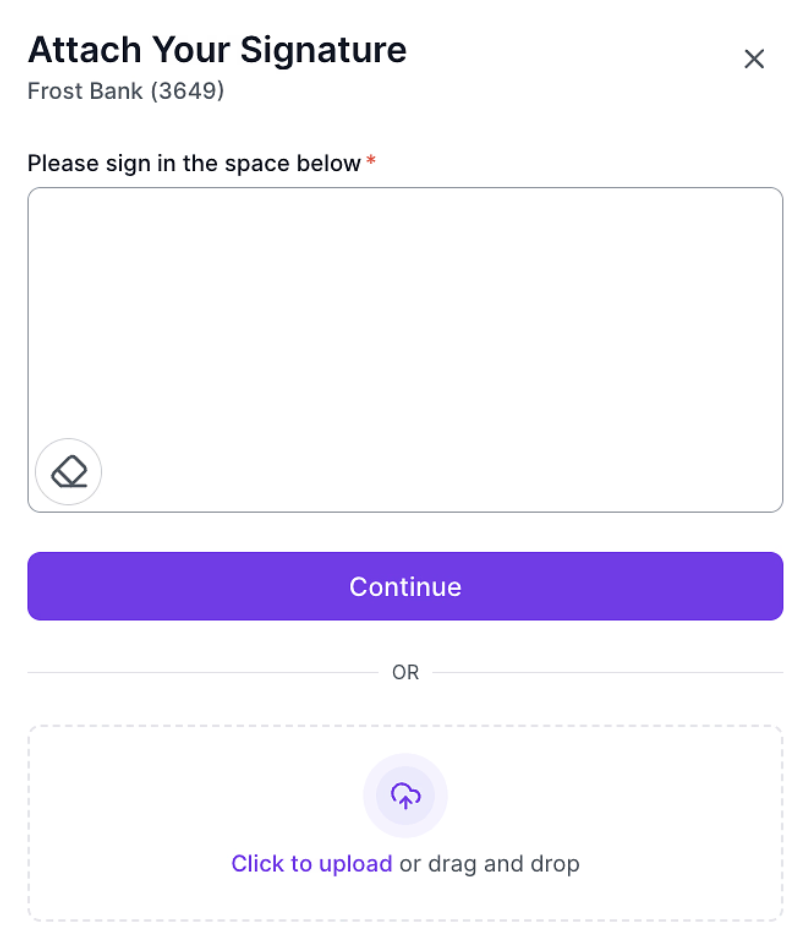
You can adjust your signature:
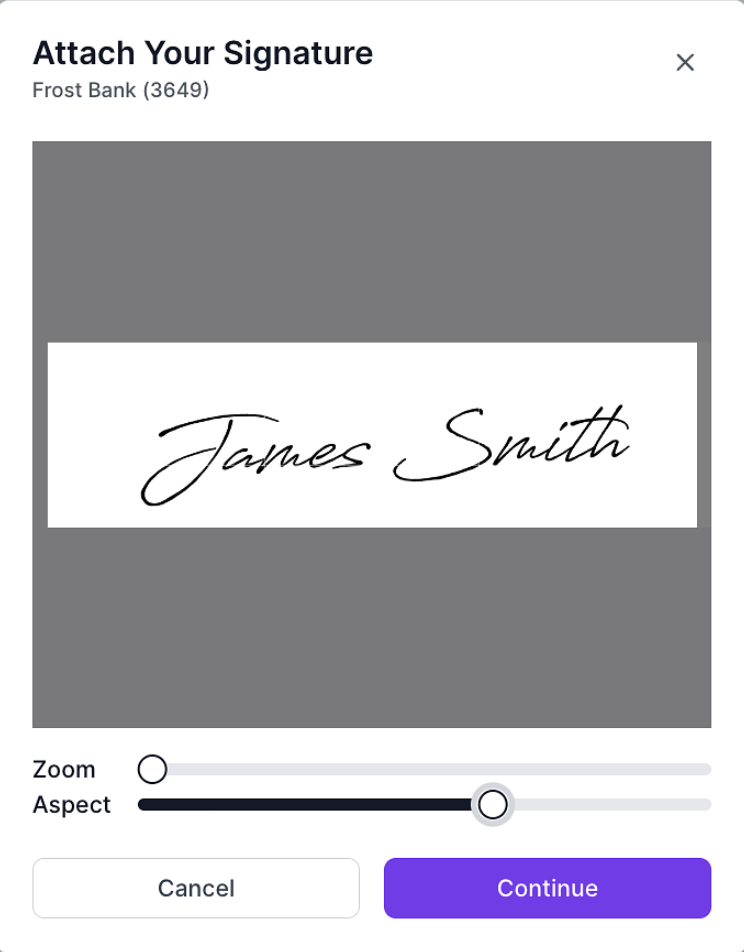
Then you will see the signature preview and click "Attach" to add the signature to the bank account.

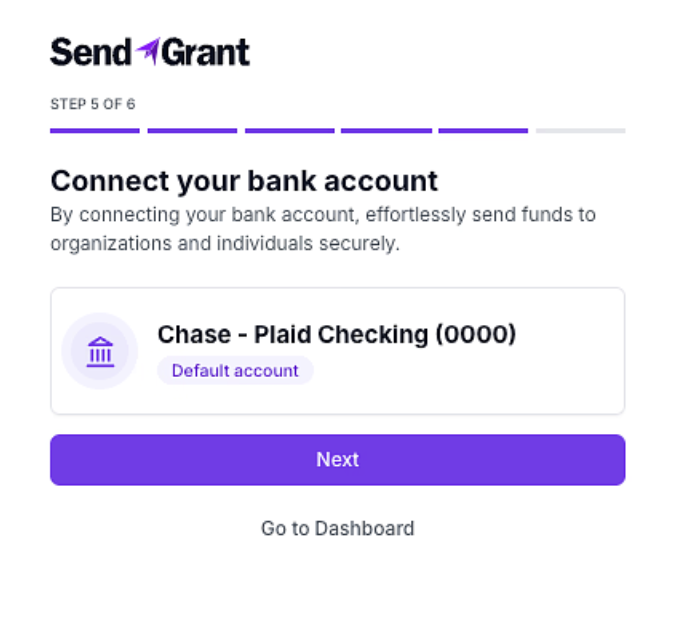
6. When your bank account is successfully connected, click "Next" to continue:
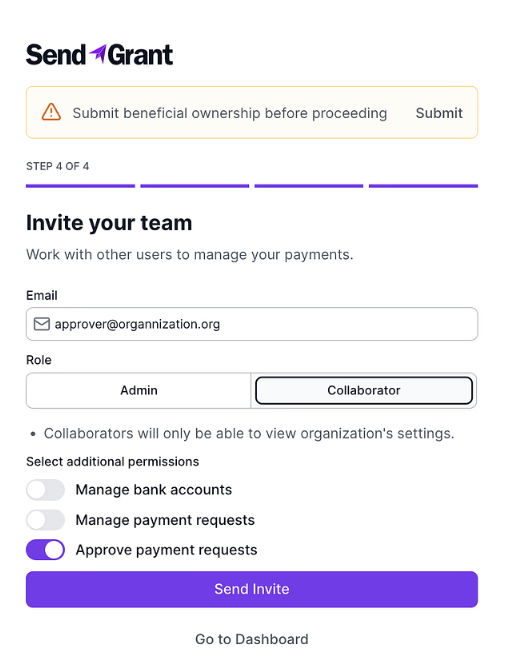
Step 6: Team Setup
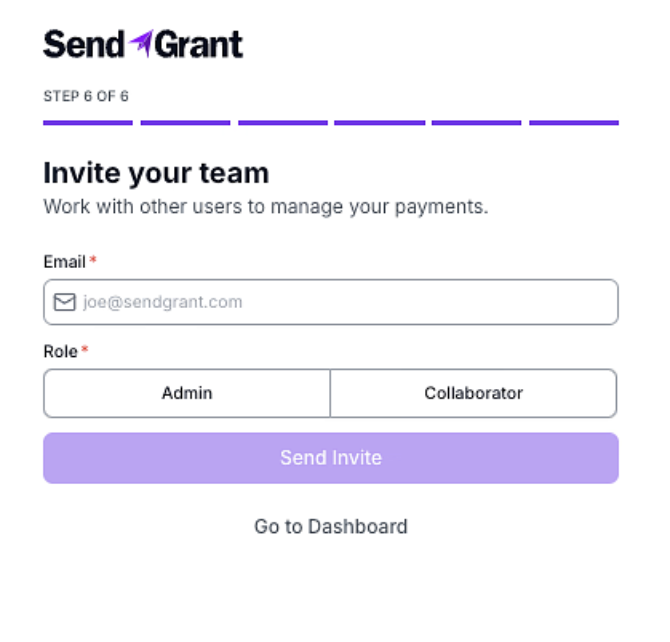
- Invite team members by adding users. It's recommended to include at least the payment approver user.
- Enter the email address of the payment approver, select the role (Admin or Collaborator), and click "Send Invite."
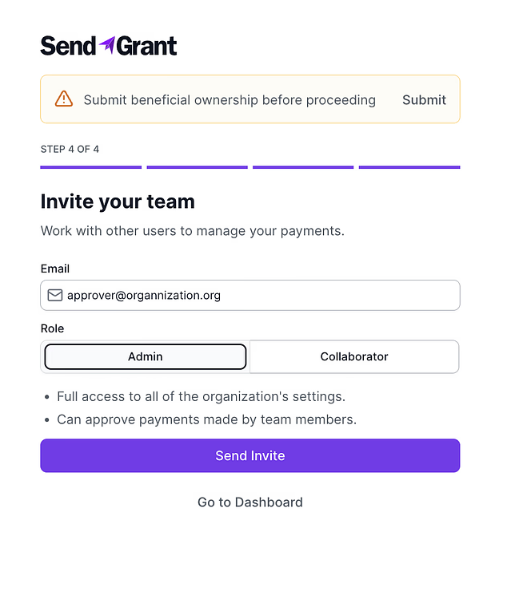
By clicking the "Admin" or "Collaborator" tab, you will get detailed information about the permissions for each role.
Once you've completed the onboarding process, you can access the dashboard and begin using SendGrant to its full potential.